The Advanced Profiler - Voices Graph tab displays the optimized bus hierarchy as it exists in the lower engine at runtime for each of the voices or playback instances managed by the sound engine.
|
Filtering Toolbar | |
|---|---|
|
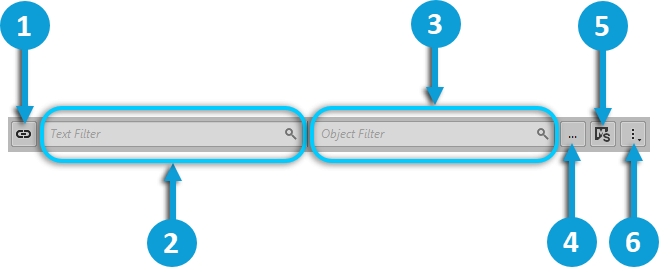
This view includes a filtering toolbar, which allows you to reduce the amount of information displayed in the view so you can focus on specific elements. Refer to Filtering in the profiling views for further details. | |
 | |
 |
Unlink Filter: Allows you to disable synchronization between multiple filter views. |
 |
Text Filter: Allows you to filter content by specifying the text. The specified words are matched with the beginning of names or strings found in content. Each additional word refines the results. This match is not case sensitive. For advanced usage, refer to Using profiler filter expressions. |
 |
Object Filter: Allows you to filter content by specifying the Wwise object. The specified Wwise objects, from the project, are used to match content from the view. Additionally, object relations, such as parent-children relations and output bus relations, are also used to match content. |
 |
Browse Object Filter: Shows a project explorer browser to select an object to filter. |
 |
Mute/Solo Filtering: When enabled, the objects with Mute activated are removed from the results, and the objects with Solo activated are exclusively displayed. |
 |
Options: Displays additional actions. |
|
Interface Element |
Description |
|---|---|
|
View |
Click the View select button to show or hide from the graph the following elements:
|
|
Graph view |
Displays the structure and contents of each voice generated by the sound engine. For more information, see the Graph view section below. |
Information about the elements played in-game is displayed in the graph. While the elements could be essentially any variety of Wwise object, they are displayed from left to right in order of their relationship starting with game objects, moving through possible Events and their targets (such as containers, States, and Switches), to sound and music objects, and finally the bus structure output.
![[Tip]](/images/2025.1.4_9062/?source=Help&id=tip.png) | Tip |
|---|---|
You can click any element in the graph to open it in the Property Editor. |
![[Note]](/images/2025.1.4_9062/?source=Help&id=note.png) | Note |
|---|---|
Non-mixing busses are not displayed in the graph view. Refer to Understanding the bus icons and processing status for more information on the various processing statuses. |
| Note |
|---|---|
For the optimized bus hierarchy of motion objects to appear in the Voices tab, you need the appropriate motion device drivers installed on your workstation. |
The relationship between each element within the structure is displayed with lines, along with information about the element. For example, hovering over or clicking on an object highlights its entire path: parent objects, child objects, and connection lines. A dotted line connects an audio structure to an Auxiliary Bus. A red dotted line indicates latency. Next to the volume output, the amount of latency appears in ms.
 |
This happens when an Auxiliary Send goes to an Auxiliary Bus that is already mixing in the current audio frame. Wwise must wait for the next audio frame to include the send in the mix. To avoid this possibility, do not direct Auxiliary Sends to Auxiliary Busses lower in the hierarchy.

|
|
The large light grey box (BP_WaterGush_01_Spigot4_3...) represents the Game Object that is associated with the Event (Fountain_Splash_02) and Sound SFX (Fountain Splash 02). |
|
|
The blue boxes represent the Event (Fountain_Splash_02) and the Sound SFX (Fountain Splash 02) objects. Numbers and icons indicate the relative volume level in decibels, low-pass filter (0-100), and high pass filter (0-100). |
|
|
The large light grey box represents the Listener Game Object (PlayerCameraManager_2147...) that is associated with the Busses and their applied effects. Numbers and icons indicate the relative volume level in decibels. |
|
|
The yellow box (AK Convolution Reverb) beneath the Bus (AkReverbZone_4) represents the Effect applied on the Bus. Numbers and icons indicate the relative volume level in decibels. |
|
|
Click the small grey circle to view the volume and amount of latency in milliseconds applied to this connection. |
The data in the Voices Graph tab is collected only once per capture period. You can, however, use the time cursor to navigate through the Performance/Voice Monitor to display data at different time periods.
| Tip |
|---|---|
Everywhere game objects are listed, such as in the Capture Log or the Voices and Voices Graph tabs of the Advanced Profiler, there is a specific shortcut menu with the following options:
|
Was this page helpful?
Need Support?
Questions? Problems? Need more info? Contact us, and we can help!
Visit our Support pageTell us about your project. We're here to help.
Register your project and we'll help you get started with no strings attached!
Get started with Wwise