Wwise 使用 Action Event(动作事件)对工程层级中的不同声音、音乐和振动结构采取特定的动作。常见的游戏中,这样的事件可能有数百个,因此能够快速找到所需事件变得至关重要。您可以使用 Event Viewer(事件浏览器)中的排序和筛选工具来查找当前工程中的不同事件。
To open the Event Viewer:
From the menu bar, click Views > Utilities > Event Viewer and then select a new pinned view (Shift+V) or a selection channel. For details on Selection Channels, see “了解 Selection Channel 和 Meter Instance”一节.
![[备注]](/images/2025.1.4_9062/?source=Help&id=note.png)
备注 同一布局中,允许同时打开多个 Event Viewer。
The Event Viewer has three different tabs, each of which filters the Events in a different way:
Filtered(筛选) 选项卡 —— 按字母顺序显示所有事件。您还可以使用 Show All: Sorted 选项,按 Action Type(动作类型)对列表排序或筛选,只显示含特定动作类型的事件。您可以通过单击加号 (+) 和减号 (-) 来展开和折叠文件夹以便浏览筛选出来的 Event。


Event Viewer 按 Play 动作类型进行筛选。
Current Selection(当前选中项)选项卡 – 列出与 Project Explorer(工程资源管理器)的 Audio(音频)选项卡中当前选中的对象关联的 Event。
Orphans(落单事件)选项卡 —— 显示当前没有与特定对象关联的落单事件。
您还可以删除事件、打开 Event Editor,或者将若干事件从 Event Viewer 拖放到 Wwise 中的其他视图(例如 Soundcaster Editor 或 SoundBank Editor)。
| 备注 |
|---|---|
对白事件不会在 Event Viewer 中显示,Dialogue Events can be viewed on the Events tab of the Project Explorer. |
视情况或个人偏好而异,您可能需要更改 Event Viewer 的显示方式。例如,可以展开或折叠所有分组,或者让 Event Viewer 每次筛选或排序时自动展开各个分组。
更改 Event Viewer 显示的方法如下:
在 Event Viewer 中右键点击组标题之一。
快捷菜单将打开。
选择以下选项之一:
Auto Expand —— 每次筛选或排序时自动展开各个分组。
Expand All —— 展开所有类别和类型分组。
Collapse All —— 折叠所有类别和类型分组。
By default, the Event Viewer displays the Filtered tab where all the Events in your project are listed in alphabetical order. 要想更快地找到事件,您可以选择 Show All - Sorted 筛选器,按事件动作进行排序。也就是说所有Play 动作分成一组,所有 Stop 动作分成一组,以此类推。
对事件列表进行排序的方法如下:
在 Event Viewer 中,点击 Filtered 选项卡。
默认情况下,所有事件会按字母顺序列出。
点击 Filter 按钮,显示筛选和排序选项。
点击 Show All - Sorted 选项。
All the Events in your project are sorted by Action category and then Action type.
You can filter the Event list by Action type. 例如,可以让列表仅显示 Stop All 动作或 Mute 动作。
按动作类型对事件列表进行筛选的方法如下:
在 Event Viewer 中,点击 Filtered 选项卡。
默认情况下,所有事件会按字母顺序列出。
点击 Filter 按钮,显示筛选和排序选项。
选择动作类别,然后点击列表中的动作类型。
The Events are filtered according to the filter option you selected.
You can filter the list to find specific Events that are associated with one or more objects selected in the Audio tab of the Project Explorer.
按当前选定对象对事件列表进行筛选的方法如下:
在 Project Explorer 的 Audio 选项卡中,选择若干对象。
在 Event Viewer 中,点击 Current Selection 选项卡。
与选定对象相关的事件将显示在事件列表中。
| 备注 |
|---|---|
If more than one object is selected in the Audio tab of the Project Explorer, the Events are sorted by object. |
You can filter the list to find orphaned Events, which are Events that contain Actions that are not associated with any object. Orphans 选项卡标题括号中的数字表示工程中的落单事件总数。
按落单事件对列表进行筛选的方法如下:
在 Event Viewer 中,点击 Orphans 选项卡。
The orphaned Events are displayed in the Events list.
根据事件列表的排序或筛选方式不同,Event Viewer 中的信息可按多种不同的方式显示。有些筛选和排序选项会在 Event Viewer 中显示层级结构。要浏览不同的层级,可以点击每个 Action(动作)类别/类型旁边的加号(+)和减号(-)来展开和折叠分组。
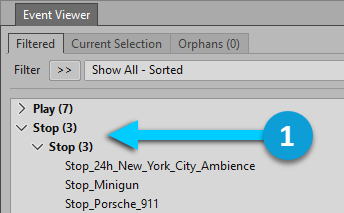
比如,要在当前所选 Filter(筛选器)为 Show All - Sorted(全部显示 - 排序)时查看 Stop(停止)动作,必须执行以下操作:
|
|
展开 Stop 动作类别和 Stop 动作类型分组来显示不同的 Event。 |